What Is NotebookLM?
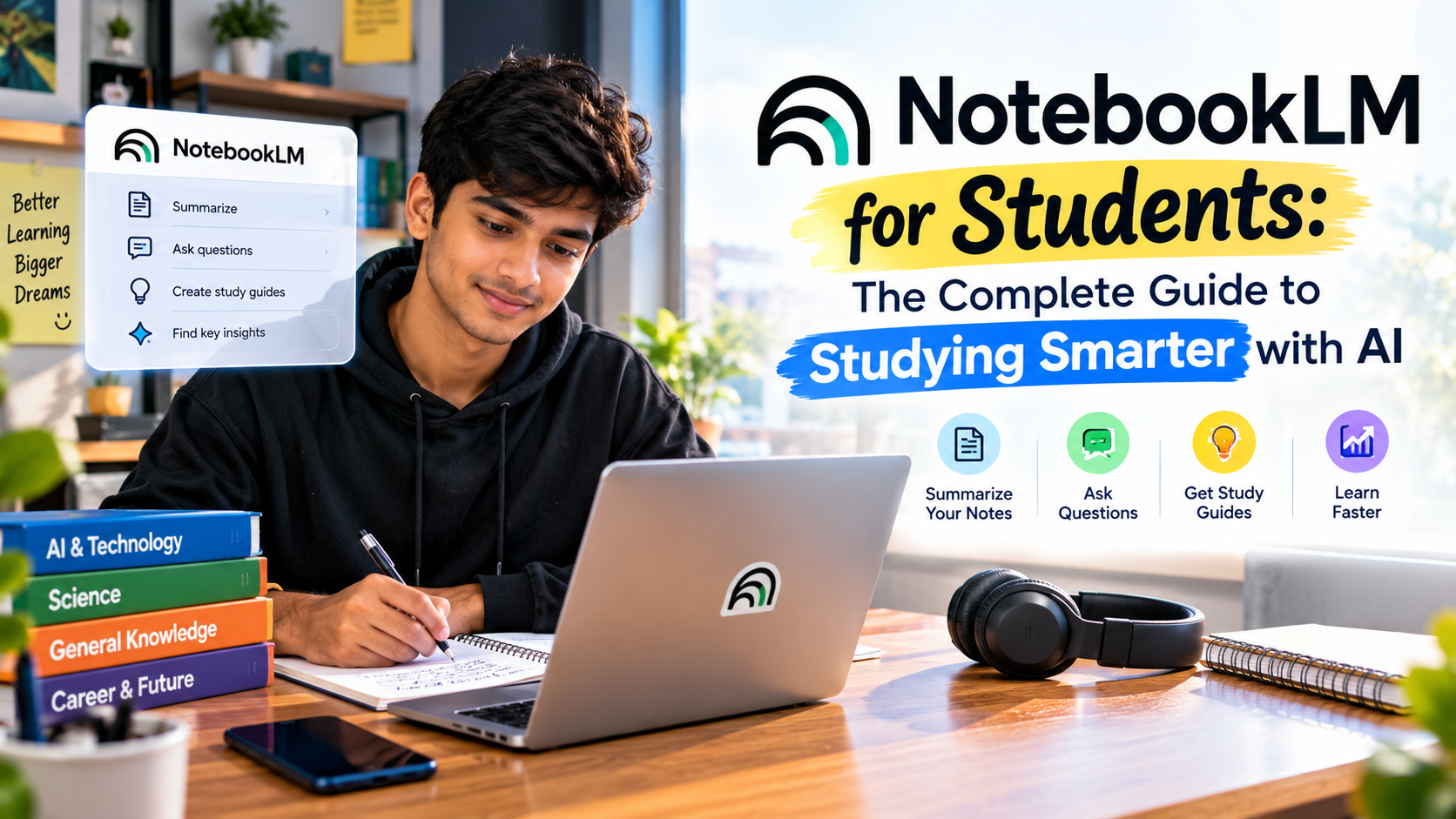
NotebookLM is a research and learning tool powered by Google’s intelligence. Unlike chatbots that pull answers from the entire internet NotebookLM works only with the sources you upload. Google describes NotebookLM as a tool that automatically analyses your sources and can create study materials from them.
In practice you upload your syllabus, lecture slides, class notes, research papers or YouTube lectures. NotebookLM then becomes an expert on your course material. Its answers are grounded in what you are actually studying.
Why this matters for students: Answers come from your materials and carry citations back to the source passages. This makes it more useful for exam preparation and assignments than a chatbot that guesses.
What Can You Upload? (Supported Sources)
NotebookLM accepts different file types. Reported supported sources include PDFs, Google Docs, Slides and Sheets websites, YouTube links, audio files, plain text, Markdown and Word or Excel files. A 2026 roundup also mentioned images. As of March 2026 EPUB files.
Student-friendly source ideas:
- Lecture slides and handwritten-note scans
- Textbook chapters (PDF or EPUB)
- Research papers and journal articles
- YouTube lecture links
- Your own typed notes
- Previous-year question papers
Getting Started in 5 Steps
- Open NotebookLM at notebooklm.google.com. Sign in using your Google account.
- Create a notebook. Use one notebook for each subject or topic for example Physics – Thermodynamics.
- Add your sources. Upload files paste text. Add links.
- Ask questions in the chat. Try asking, What are the key themes?. Compare these two sources.
- Use the Studio panel to generate audio, video, flashcards, quizzes, mind maps and more.
Tip: Keep notebooks focused. A notebook with five to ten sources gives sharper answers than a notebook that contains everything.
The Best NotebookLM Features for Students
- Chat with Your Notes
Ask questions in language and receive cited answers from your uploaded material. This is ideal for clearing doubts at eleven o’clock at night before an exam.
Try prompts like:
- Explain this chapter like I am a beginner.
- List the 10 important definitions.
- What are the likely exam questions from this unit?
- Create a comparison table of concept A. Concept B.
- Audio Overviews: Learn Like Listening to a Podcast
This feature turns your sources into a podcast‑style conversation between two AI hosts. It is great for revision while commuting, walking or doing chores. 2026 Reports describe five Audio Overview formats, including a thirty‑minute lecture mode and the tool supports audio and video overviews in more than eighty languages.
- Video Overviews
Video Overviews turn your material into narrated, presentations. A advanced cinematic version launched in 2026 but one source says it is limited to the Ultra plan so most students will use the standard version.
- Flashcards and Quizzes
Google says these flashcards and quizzes are generated from the sources you upload. A March 2026 update added progress tracking so cards you miss come back. Cards you have mastered stay gone. One review ranks quizzes and flashcards with tracking as the valuable feature for learners.
- Study Guides and Reports
Create study guides with key terms sample quizzes, with answer keys and essay questions drawn from your material.
- Mind Maps, Slide Decks, Infographics and Data Tables
The Studio panel now also offers mind maps, reports, infographics, slide decks and exportable Data Tables. These are useful for learners and for turning a messy chapter into a clean summary. I find these features very helpful for study.
Versus Paid: What Do Students Get? NotebookLM has a tier with higher limits on paid and education plans. According to Google’s education page the free tier allows three Audio Overviews, three Video Overviews and ten quizzes or flashcard sets per user per day. Upgraded plans raise this to twenty Audio Overviews, twenty Video Overviews and one hundred quizzes or flashcard sets per day. Limits and plan details change often so check Google’s pricing page before relying on them.
A Practical Study Workflow with NotebookLM
Stage What to do
Before class Upload the syllabus or reading and generate an Audio Overview to get the picture. I do this before every class.
After class Add your notes and slides then ask NotebookLM to fill gaps and explain parts. I do this after class.
Weekly revision Generate. Test yourself. I use this every week.
Before exams Create a quiz a study guide and a mind map. Listen to the Audio Overview on the go. I use this when exams are near.
Assignments and research Upload papers. Ask for comparisons, themes and cited summaries. I do this for assignments.
Smart Tips to Get Results
- Name your sources clearly so citations are easy to follow.
- Be specific in prompts. “Explain Chapter 3 in language with 2 examples” beats “Summarize.”
- Customize Audio Overviews. You can give instructions such as “focus on problems” or “explain for a Class 12 student.”
- Study in your language if that helps you understand better.
- Use quizzes actively. Do not just read answers; attempt them first.
- Check the citations. Click through to confirm the answer matches your source.
Limitations Students Should Know
- NotebookLM only knows what you upload. If your notes have errors the answers may repeat them.
- AI can still make mistakes. Always verify facts, formulas and dates against your textbook.
- Do not use NotebookLM to replace learning. Generating summaries is not the same as understanding. Use NotebookLM to practice, not to read.
- Follow your institution’s AI policy. Check what is allowed for assignments and submissions.
- Features and limits change. Google updates NotebookLM frequently and the underlying model changed times in 2026 alone.
Final Thoughts
NotebookLM works best as a tutor built on your own material. It can summarize, quiz and explain and it can turn a pile of PDFs into a podcast or a deck of flashcards. I find it very useful, for my study. Used actively with quizzes, self-testing and source-checking it can save hours of study time. Make revision far more engaging.
Start small: upload one chapter generate one Audio Overview and one set of flashcards and see how it fits your study style.
No responses yet